VPN
Wireguard
Get aconfig file, e.g. from Mullvad:
Choose your platform→LinuxGenerate a WireGuard key→Generate keyGenerate and download configuration→Download zip archive
Select a country & city near you. Only one server can be connected to at once.
Import the config file with NetworkManager, replace wg0 with your file name:
nmcli connection import type wireguard file wg0.conf
Also see Thomas Haller’s Blog.
DNS
To change DNS with NetworkManager’s nmtui:
Edit a connection→EditIPv4 CONFIGURATIONDNS servers:194.242.2.2(Mullvad)☑ Ignore automatically obtained DNS parameters
IPv6 CONFIGURATIONDNS servers:2a07:e340::2(Mullvad)☑ Ignore automatically obtained DNS parameters
Or, to completely disable it, insert this into
/etc/NetworkManager/conf.d/90-dns-none.conf:
[main]
dns=none
Then restart NetworkManager.
Proxies
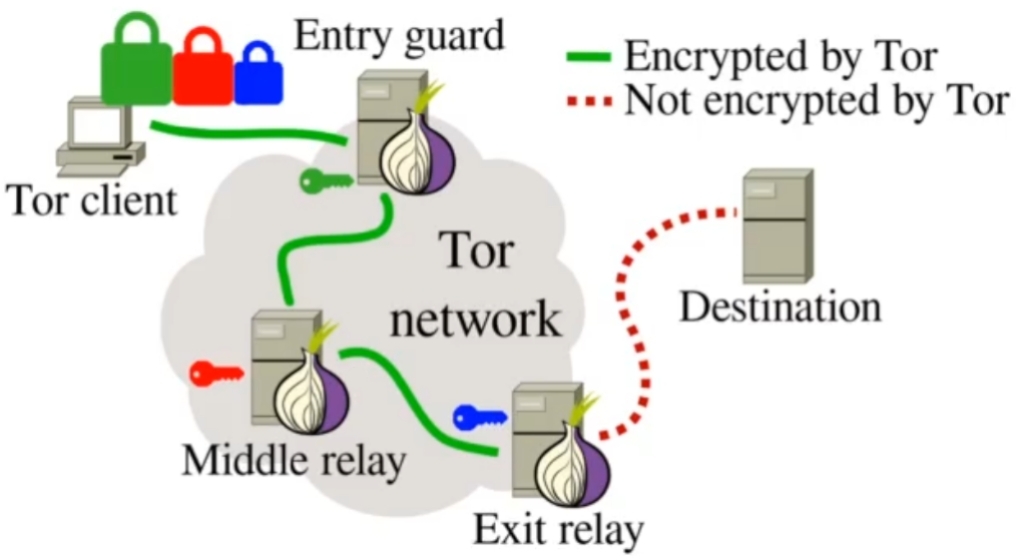
- 🧅 Tor – Anonymization proxy, onion routing.
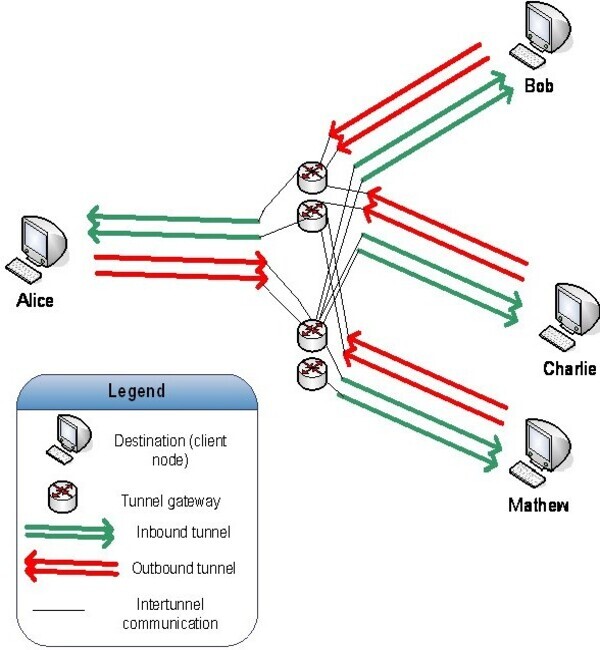
- 🧄 I2Pd – Anonymization proxy, garlic routing.
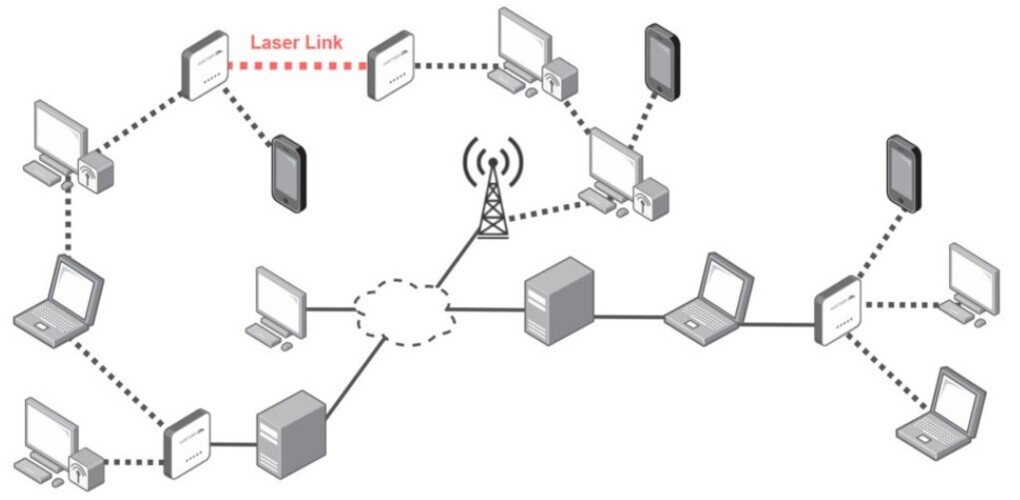
- 🌱 Yggdrasil – Non-anonymization network overlay.
Configure programs & apps to use a network proxy:
- Tor –
socks5://127.0.0.1:9050. - I2Pd –
socks5://127.0.0.1:4447.
Use torsocks or proxychains-ng to route programs without SOCKS/proxy support through Tor/I2Pd.
By default proxychains-ng routes through Tor, so for I2P change the port on the last line in its config.
Standard & commonly used curl proxy environment variables to be set in the
shell profile, here for Tor:
export http_proxy="socks5h://127.0.0.1:9050" # Must be lowercase.
export HTTPS_PROXY="$http_proxy"
export FTP_PROXY="$http_proxy"
export FTPS_PROXY="$http_proxy"
export ALL_PROXY="$http_proxy"
export NO_PROXY="127.0.0.1,::1,localhost"
export SOCKS5_PROXY="${http_proxy#*//}" # Lynx SOCKS proxy.
yay will try connecting to the SOCKS proxy from the HTTP proxy, so here’s a function which may be put in the shell profile
yay() { env -u http_proxy -u HTTPS_PROXY yay "$@" ;}
Lynx will likewise try to connect to one proxy from the other, so here’s the same function for it:
lynx() { env -u http_proxy -u HTTPS_PROXY lynx "$@" ;}
mpv doesn’t have SOCKS support, but will pass environment proxies to yt-dlp, so
here’s a function for it (replace torsocks with proxychains -q if needed):
mpv() { torsocks mpv -ytdl-raw-options=proxy= "$@" ;}
Iptables
To block all non-Tor/I2Pd traffic, set these iptables rules (as root):
# Clear current rules
iptables -F

# Allow Tor user. Repeat this but change 'tor' to 'i2pd' for I2Pd &c.
iptables -A OUTPUT -m owner --uid-owner tor -j ACCEPT

# (Optional) Allow a port on LAN, e.g. 22 (ssh)
iptables -A OUTPUT -d 192.168.1.0/24 -p tcp -m tcp --dport 22 -j ACCEPT

# Allow loopback connections
iptables -A INPUT -i lo -j ACCEPT
iptables -A OUTPUT -o lo -j ACCEPT

# Accept packets for established (allowed) connections
iptables -A INPUT -m state --state ESTABLISHED -j ACCEPT

# Drop all packets for other users
iptables -P OUTPUT DROP
iptables -P INPUT DROP
iptables -P FORWARD DROP

# Save the rules
iptables-save >/etc/iptables/iptables.rules

# Apply the rules
iptables-restore /etc/iptables/iptables.rules

# IPv6
ln -sf /etc/iptables/iptables.rules /etc/iptables/ip6tables.rules
ip6tables-restore /etc/iptables/ip6tables.rules
For Artix-runit, install iptables-runit & set it to run at boot (both
iptables & ip6tables) to automatically apply these.
NTP
With this set-up & Tor, NTP won’t work (it uses UDP on port 123). If you’re
running I2Pd though, it can synchronize system time, append these lines to
/etc/i2pd/i2pd.conf:
[nettime]
## Enable NTP sync. (default: false)
enabled = true
## Comma-separated list of NTP server. (default: pool.ntp.org)
# ntpservers = pool.ntp.org
## NTP time sync interval in hours. (default: 72)
# ntpsyncinterval = 72
## Sync clock from transport peers (default: true)
# frompeers = true
Mutt Wizard
mbsync (used for IMAP by mutt-wizard) doesn’t have proxy support, but can be routed through a proxy with torsocks/proxychains-ng, add to your aliasrc:
for command in mw mailsync ; do
    alias $command="proxychains -q $command"
done; unset command
For I2Pd, pass -f to proxychains with a
config file.
msmtp has proxy support, add this at the end of the account section in
~/.config/msmtp/config:
tls_starttls off
proxy_host 127.0.0.1
proxy_port 9050		# 4447 for I2Pd
Syncthing
Syncthing’s network options are:
Actions→Settings→ConnectionsEnable NAT traversal– UDPLocal Discovery– LANGlobal Discovery– Discover devices over internetEnable Relaying– Relay traffic over internet
Default Sync Protocol Listen Addresses are:
tcp://0.0.0.0:22000quic://0.0.0.0:22000(UDP)dynamic+https://relays.syncthing.net/endpoint
Tor & LAN connections are TCP, so set it to just tcp://0.0.0.0:22000, & add
the relay if using it to connect to devices on the clearnet.
Shell variables for (replace $http_proxy if needed):
export all_proxy="$http_proxy" # Must be lowercase.
export ALL_PROXY_NO_FALLBACK=1 # Don't make connections if proxy fails.
export NO_PROXY="$NO_PROXY,192.168.1.0/24" # No proxy for LAN devices.
Iptables rules to allow Local Discovery:
# LAN connections
iptables -A OUTPUT -d 192.168.0.0/24 -p tcp --dport 22000 -j ACCEPT
iptables -A INPUT -s 192.168.1.0/24 -p tcp --dport 22000 -j ACCEPT
# LAN broadcast
iptables -A OUTPUT -d 192.168.0.0/24 -p udp --dport 21027 -j ACCEPT
iptables -A INPUT -s 192.168.1.0/24 -p udp --dport 21027 -j ACCEPT
To connect to devices over Tor hidden services, first reate a hidden service
for Syncthing, insert these lines in /etc/tor/torrc (where other
HiddenService lines are):
HiddenServiceDir /var/lib/tor/hidden_service_syncthing/
HiddenServicePort 22000 127.0.0.1:22000
Reload Tor, its onion address will be in
/var/lib/tor/hidden_service_syncthing/hostname.
In Syncthing, set the device’s address to the onion (change hidden_service to
your onion):
Remote Devices→Edit→AdvancedAddresses: tcp://hidden_service.onion:22000Compression: All Data
If on Android (with Orbot), create a hidden service:
... More→Hosted Onion Services→+Name: hidden_service_syncthingLocal Port: 22000Onion Port: 22000
Then restart Orbot & go back & tap the service to copy the address.
Artix Linux
In /etc/pacman.conf, under [options], uncomment & edit this line:
XferCommand = /usr/bin/curl -x socks5h://127.0.0.1:9050 -L -C - -f -o %o %u
Further down, under # Misc options, insert this line below
#DisableSandboxSyscalls:
DisableDownloadTimeout
For I2P, replace socks5h://127.0.0.1:9050 with socks5h://127.0.0.1:4447.
Remove all servers in /etc/pacman.d/mirrorlist & put:
Server = http://dotsrccccbidkzg7oc7oj4ugxrlfbt64qebyunxbrgqhxiwj3nl6vcad.onion/artix-linux/repos/$repo/os/$arch
Server = http://artixhnbzrty77wcrnv4a5ylx7ujro7w5ueopb6un6uxmc36lhnz2oid.onion/artix-linux/$repo/os/$arch
Server = http://artix2mxaxme7kbswcil3l3q5vrhvol7fzipjo47xtxmhgb75chipgid.onion/artix-linux/$repo/os/$arch
For I2P, instead insert:
Server = http://artixmirror.i2p/artix-linux/$repo/os/$arch
Server = http://artixmirror2.i2p/artix-linux/$repo/os/$arch
If these aren’t in your address book, here’s the .b32 addresses:
Server = http://zjhzlv5f3lsrockbgsrwhblvxclmerdp7u574m3moehxy6c45x7a.b32.i2p/artix-linux/$repo/os/$arch
Server = http://artix2akdnitgmh26k7d47ahlkj7wqaenwfuti54g5bren7iiimq.b32.i2p/artix-linux/$repo/os/$arch
Arch Linux
This supposes you’re running Artix with artix-archlinux-support installed,
e.g. by LARBS.
Remove all servers in /etc/pacman.d/mirrorlist-arch & put:
Server = http://dotsrccccbidkzg7oc7oj4ugxrlfbt64qebyunxbrgqhxiwj3nl6vcad.onion/archlinux/$repo/os/$arch
Server = http://artixhnbzrty77wcrnv4a5ylx7ujro7w5ueopb6un6uxmc36lhnz2oid.onion/arch-linux/$repo/os/$arch
For I2P, instead insert:
Server = http://artixmirror.i2p/arch-linux/$repo/os/$arch
If this isn’t in your address book, here’s the .b32 address:
Server = http://zjhzlv5f3lsrockbgsrwhblvxclmerdp7u574m3moehxy6c45x7a.b32.i2p/arch-linux/$repo/os/$arch
Android
Both Tor (Orbot), I2Pd, & Yggdrasil are available from F-Droid.
If you’ve installed Orbot, set F-Droid to use its onion mirrors:
Settings→Proxy→☑ Use Tor
Orbot is also available on iOS.